
ProxMox VM Agent Install
Summary
ThereAn areoften casesoverlooked wherepart in ProxMoxof the Summarydeployment forof the VM in thea ProxMox interface shows that the VM is usingadding allthe (oragent. almost all)Other Hypervisors provide a "right-click add" sort of it'smethod memory.to add a Guest Agent. InProxMox manyrequires casesa little more effort but the ProxMox interface is reporting any memory the OS is using as buffer/cache as consumed memory. To get better integration/reportingaddition of the VMagent allows for graceful shutdowns, IP reporting to the ProxMoxHypervisor, hypervisorand youbetter/more needconsistent tofile manuallysystem install"freezing" thewhen guestdoing agent. backups/snapshots
Install the Agent
https://pve.proxmox.com/wiki/Qemu-guest-agent
Linux
Depending on the distribution you are using, just use the package manager (yum or apt) to add the package qemu-quest-agent
After the install is complete you need to POWER OFF the VM. The daemon/service will not start with an enable or start nor will a reboot work. You need to power off / power on the VM. You also need to make an edit to the VM's options before you power off for the full effect.
Windows
Windows is slightly more complicated. You need the VirtIO drivers and that process is explained here:
https://pve.proxmox.com/wiki/Windows_VirtIO_Drivers
You need an ISO that has the driver and the agent to install it on the system.
This has not been tested internally but it should likely be presumed that a power off / power on should be done here as well.
Make a change to the VM before powering back on after installing the agent.
In the ProxMox interface select your VM and go to Options. Select the QEMU Guest Agent option and click EDIT:
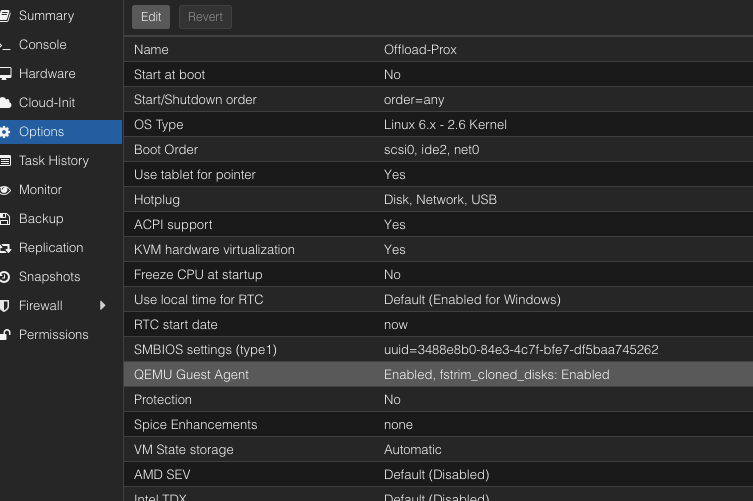
(By default it is disabled). The edit screen will show:
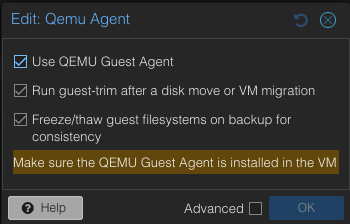
Ensure that "Use QEMU Guest Agent" is checked and the "Run guest-trim after a disk move or VM Migration" is optional.