
Deploying Object Storage
Deploying
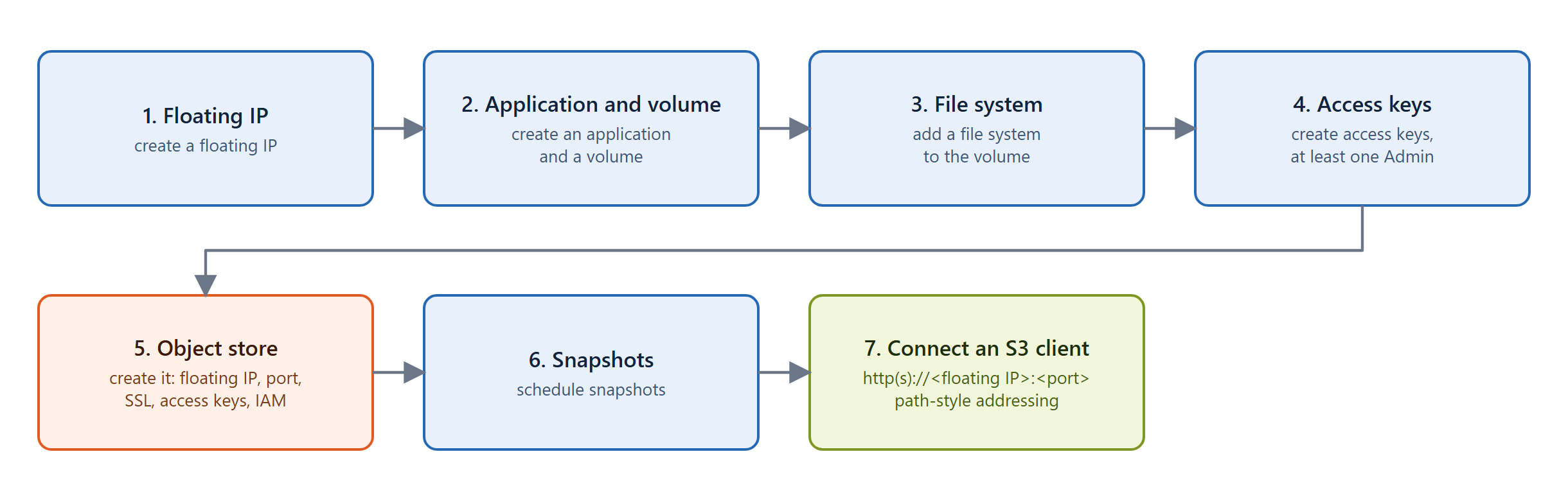
This page walks through setting up an object store from scratch and connecting a first S3 client. Each step links to the page that covers that command in full.
Before you start
Decide on:
Using the guided workflow (web interface)
The web interface has a Volume Creation workflow in the top bar. Choose it, then choose the Object connectivity. It walks through four steps, Create a Volume, Create a Filesystem, Create an Object StorageStore and Schedule Snapshots, and opens the object stores list when it finishes. Create the floating IP and the access keys first (steps 1 and 4 below), because the object store step asks for them.
Step by step (CLI)
The examples use an application Backup, a volume ObjVol1 and a floating IP named s3-fip. Replace the values with your own.
1. Create the floating IP for the endpoint (see Floating IPs):
floatingips create s3-fip --address=10.0.0.50 --mask=255.255.255.0 --nodes=node1 node2 --interfaces=ens1f0 ens1f0
2. Create the application and the volume (see Applications and Volumes):
applications create --application=Backup
applications volumes create --application=Backup --volume=ObjVol1 --capacity=50TB --pool=Pool1 --n=<n> --k=<k>
3. Add a file system to the volume (see File systems). An object store can only be created on a volume that has one:
applications filesystems add --application=Backup --volumes=ObjVol1
4. Create the access keys (see Object access keys). Secret keys must be at least 8 characters, and access key names at least 5:
applications objects access_keys create --accessKey=backupadmin --secretKey=<secret> --role=Admin
applications objects access_keys create --accessKey=backupapp --secretKey=<secret> --role=Regular
5. Create the object store (see Object stores):
applications objects stores create --application=Backup --volume=ObjVol1 --floatingIp=s3-fip --port=9000 --enableSsl --adminAccessKeys=backupadmin --regularAccessKeys=backupapp
When the store starts, StorONE checks that it answers S3 requests before reporting success. If it doesn't answer within 15 seconds, the store isn't started and the command fails; see Troubleshooting object storage.
6. Schedule snapshots of the store's volumes (see Scheduling snapshots):
applications snapshots schedulers schedule --application=Backup --volume=ObjVol1 ...
7. Check the store:
applications objects stores list --application=Backup
The endpoint for this example is https://10.0.0.50:9000.
Connecting an S3 client
Every client needs three settings:
http(s)://<floating IP>:<port>.
Path-style addressing. Bucket names go in the path (https://10.0.0.50:9000/backups/file.bin), not in the host name.
For HTTPS stores, certificate verification turned off. The built-in certificate doesn't contain the endpoint's address, so a client that verifies certificates rejects the connection. Traffic is still encrypted.
With the AWS CLI:
aws configure set default.s3.addressing_style path
EP="--endpoint-url https://10.0.0.50:9000 --no-verify-ssl"
aws $EP s3 mb s3://backups
aws $EP s3 cp ./file.bin s3://backups/
aws $EP s3 ls s3://backups/
Creating the bucket (mb) needs an Admin key. Regular keys can read and write objects in existing buckets.
In SDKs and other tools, look for the same three settings. For example: s3={'addressing_style': 'path'} and verify=False in boto3, ForcePathStyle = true in the AWS SDK for .NET, --no-check-certificate in rclone and s3cmd, and the "ignore certificate errors" option of a backup application.
Next: Object stores