Veeam Backup and Replication Best Practice Guide
Introduction
This document is intended to provide the best practices for using Veeam's Backup and Replication product with the StorONE Storage Appliance Software to Backup, Restore, and Replication Virtual Machines.
Veeam allows for a wide range of customizations to their product to allow users to tailor their configuration for their needs. Within this document we will discuss the following types of Veeam Jobs that can be leveraged to protect a user's environment:
Backup Job
This is the job likely most associated with Veeam. The configuration of this initial Backup Job (multiple different jobs can be utilized to meet site/user demands) will be the basis for all the additional protection layers that will be recommended in this document.
The Backup protects the environment by storing the backups in a designated/configured Veeam Backup Repository.
Backup Copy
Not to be confused with Veeam's "Copy Job", the Backup Copy is a Veeam Job type that allows mirroring of an existing Backup Job directly from another job or from an entire Backup Repository. The Backup Copy allows the creation of multiple copies of the existing backups to ensure the protection and recovery of an environment.
The Backup Copy is generally intended to utilize a Veeam Backup Repository other than the one used for the initial Backup Job.
Replication
Replication is for creating Replicated/Standby VMware VMs in an alternate ESXi/vSphere environment. Veeam can replicate directly from a running VMware VM or, as we recommend, from a backup in a Backup Repository. Unlike Backup and Backup Copy jobs, the Replication's destination will be a VMware Datastore.
SureBackup
In computing there was an old adage that 'you are only as good as your last backup.' The reality is that you are really only as good as your last restore. Veeam provides a mechanism to automatically test and verify restores after a Backup Job has completed. StorONE recommends this process be leveraged in order to ensure that the backups that are being taken can indeed be restore if/when an environment requires it.
Requirements / Recommedations
StorONE
The testing used to create this document was completed using StorONE version 3.8.0.66. Later versions of the StorONE code can be applied to this process as well.
Protocols
StorONE has been certified to be used with Veeam with the following protocols:
-
-
-
-
-
- CIFS/SMB - VeeamReady StorONE SMB Repository
- NFS - VeeamReady StorONE NFS Repository
- iSCSI - VeeamReady StorONE iSCSI Repository
-
-
-
-
N+K Settings
<TBD> Will note that 8+X is not needed for Veeam to be performant
Snapshots/Retention
<TBD>
Recommendations of things NOT to do
It is StorONE's recommendation to avoid using VMDK or RDM storage for the creation of Veeam Storage Repositories
Veeam
Direct Connect Volumes
For direct mounted (block) volumes (StorONE volumes presented directly to the Veeam Server) Veeam has specific recommendations for formatting and block size ( Veeam's Backup and Replication Best Practices )
Windows
Windows 2k19+ use ReFS with 64KB block size
Linux
Format volumes with XFS and 4KB block size
VMware Block Protocol ( iSCSI or FC ) Datastores
When using Veeam to protect VMware Datastores that are using Block Protocols it is recommended that you configure the Veeam Server's initiator(s) to access the LUN used for the VMware Datastore. From the Storage you should add a mapping for the LUN to allow Veeam to access the storage volume.
Veeam can directly access/read VMFS and this configuration generally provides better performance for backups.
Veeam Proxy Requirements
When you want to manipulate entities via Veeam that are in different Datacenters (VMware or Physical) and/or network subnet you need to use a Veeam Proxy. The Veeam Proxy provides the Veeam Server the ability to communicate across these boundaries so you don't have to setup different Veeam Servers in all your locations.
In order for the Veeam Proxy to be effective they need to have be able to directly communicate with the Backup Repositories in their respective locations.
iSCSI
If/when using iSCSI the Proxy Server (Windows or Linux) will need to have the iSCSI initiator and tools installed. The Proxy's software should be configured to allow an iSCSI login to the Storage Target and the Storage Target should allow mapping of the LUN to the Proxy's initiator.
NFS/SMB
When utilizing NFS or CIFS/SMB the tools for accessing these types of storage must be installed on the Proxy Server. When using Linux for a Veeam Proxy it should be noted that not all Linux distributions default to having the nfs-common or cifs-utils installed. It is recommended to ensure these packages are installed and/or up to date.
3-2-1 Backup Rule
Veeam Blog Post Regarding the 3-2-1 Backup Rule
Veeam Community Blog Post about the 3-2-1-1-0 "Golden Backup Rule"
Summary of the 3-2-1 method/rule
-
-
-
-
-
-
- Maintain at least 3 copies of your data
- Store your backups on at least 2 different medias / storage devices
- Store at least 1 copy in an offsite location
-
-
-
-
-
The additional 1-0 added as technology has advanced
-
-
-
-
-
-
- 1 Offline or "air-gapped" copy (such as a StorONE snapshot)
- 0 errors after a backup recovery verification (which can be done with SureBackup)
-
-
-
-
-
Setup
Overview
3 Copies
-
-
-
-
- 1 Backup on a Primary Storage Array
- 1 Backup Copy on a Secondary Storage Array
- 1 Replication Job to an alternate location
- replicated to a third Storage Array
-
-
-
2 Different Media
-
-
-
-
- 1 Primary Storage Array
- This can be StorONE or another vendor
- 1 Secondary Storage Array
- A StorONE Storage Appliance
- 1 Primary Storage Array
-
-
-
1 Offsite Copy
-
-
-
-
- The replicated copy is to another site, datacenter, and storage
- Requires another ESX destination
- Requires a third storage array
- The replicated copy is to another site, datacenter, and storage
-
-
-
1 Offline Copy
-
-
-
-
- the 3-2-1-1-0 method is technically calling for the offline copy to be on removable media. In this scenario the Replicated copy can remain offline until/if needed
-
-
-
0 Errors
-
-
-
-
- Configure a SureCopy Veeam job to verify/test the primary backup which will be the basis for the BackupCopy and Replication jobs.
-
-
-
Backup/Restore Vs. Replication
It should be mentioned that Backups and Restores happen to and from Storage Repositories
Veeam Replication can be sourced from either a running VM OR a backup in a Storage Repository. However, the Replication TARGET is to a Hypervisor "datastore" and NOT another Storage Repository
Copy 1 / 1st Media device
Your primary backup copy is on One Storage array. In these examples, the primary is on StorONE but can also be on another vendor.
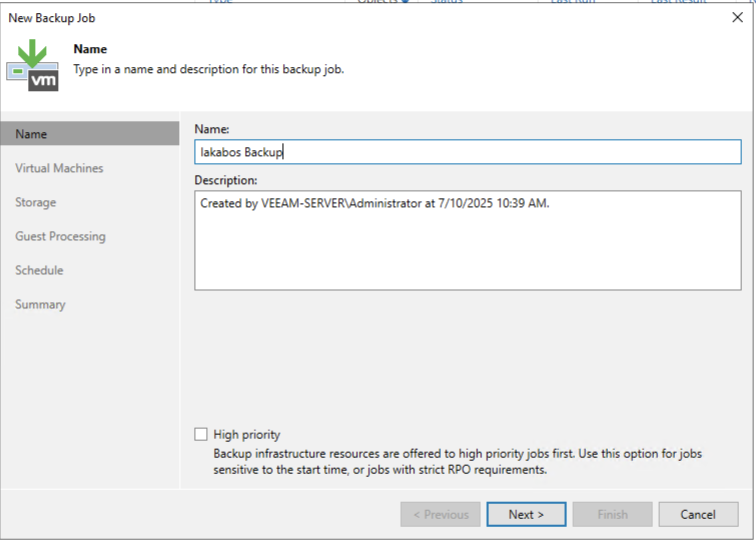
Create the Backup Job and name it:
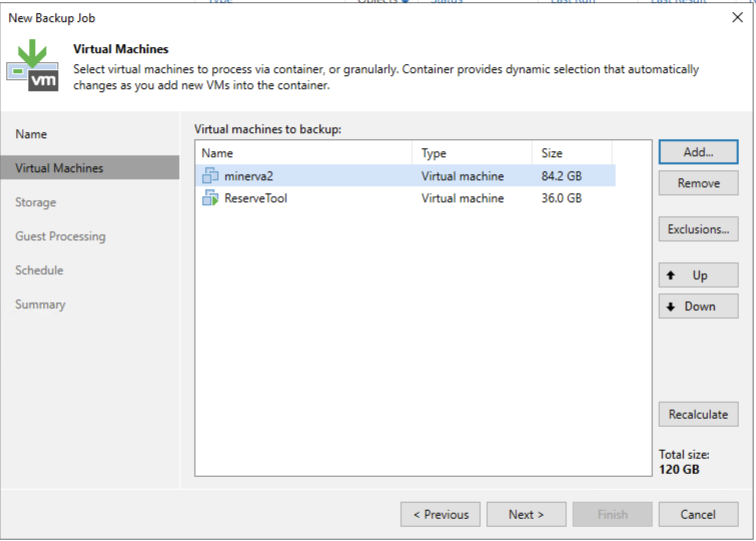
Add your virtual machines to the job:
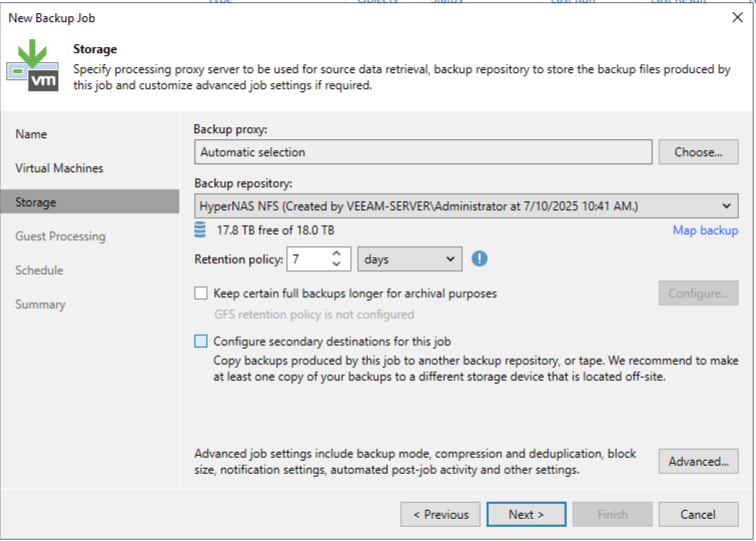
Next you should select your storage repository. This is the 1st of the 2 media /storage devices that are recommend
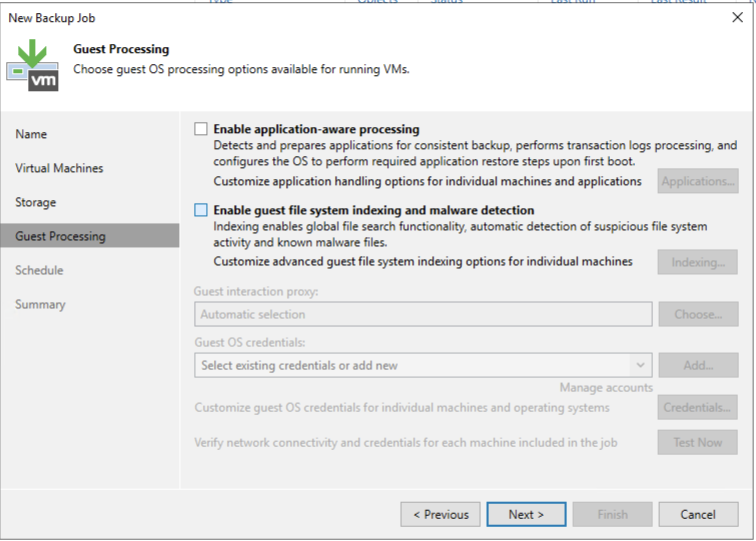
The next screen is optional and dependent on the types of VMs and backup jobs you've created
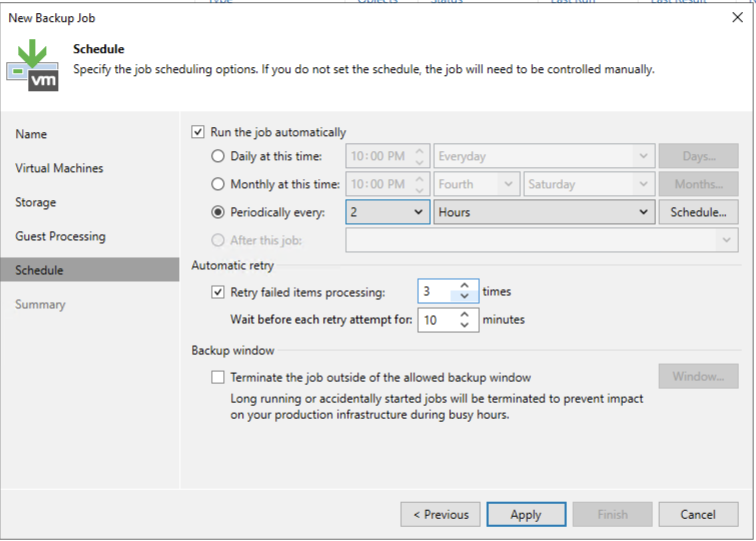
Next setup the schedule that you want your VMs to backup to
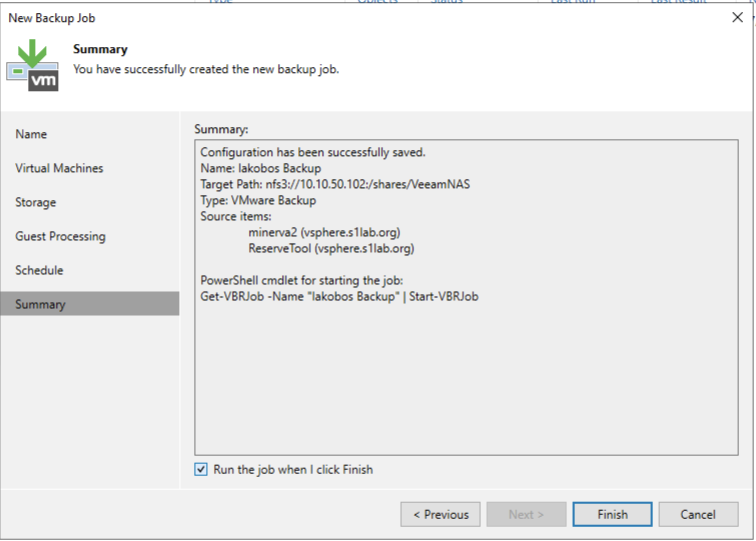
Verify your settings and then choose to run the job when you finish (or let it run as scheduled)
Copy 2 / 2nd Media Device
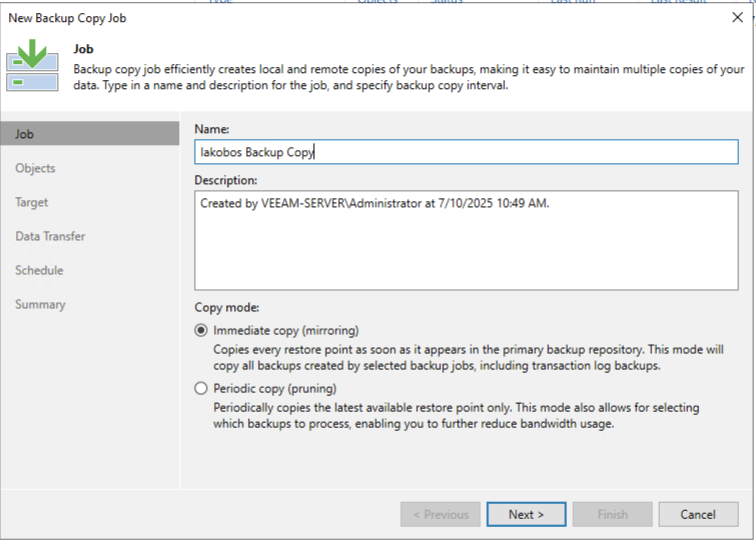
Create a Backup Copy Job and choose the copy mode
In the next section you want to choose the Objects that you want to make a Backup Copy from. Choose from the job that you created for the 1st Copy
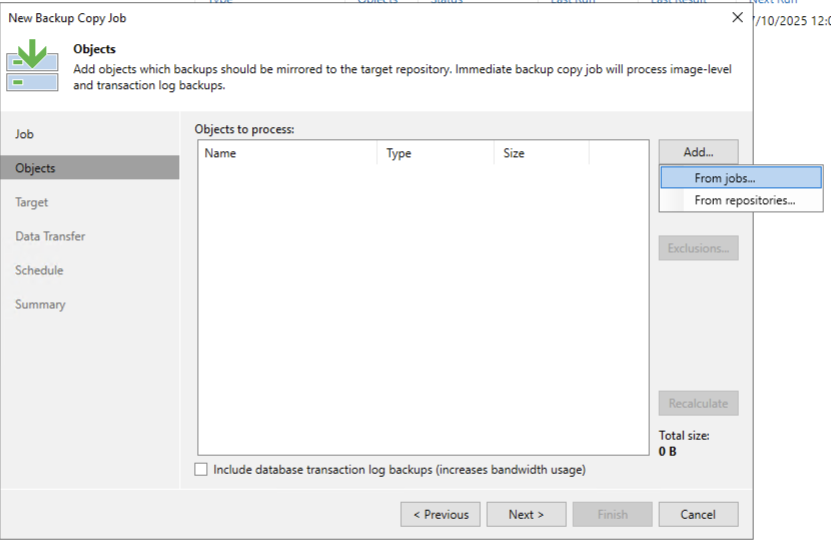
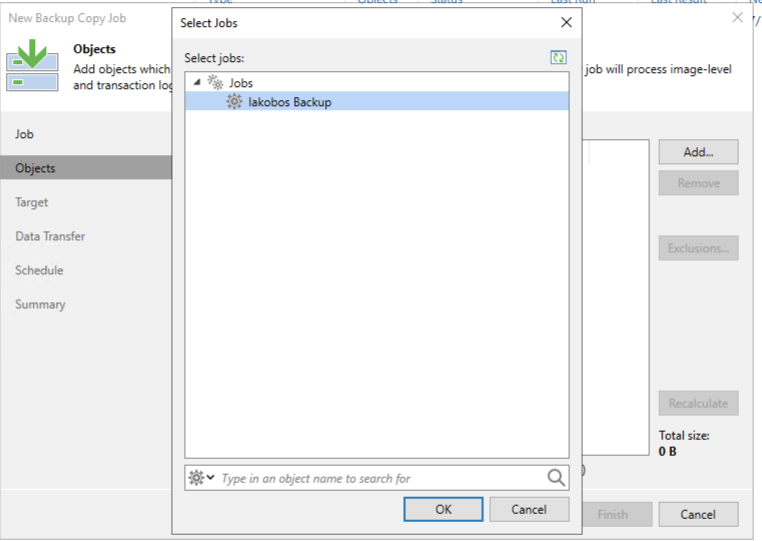
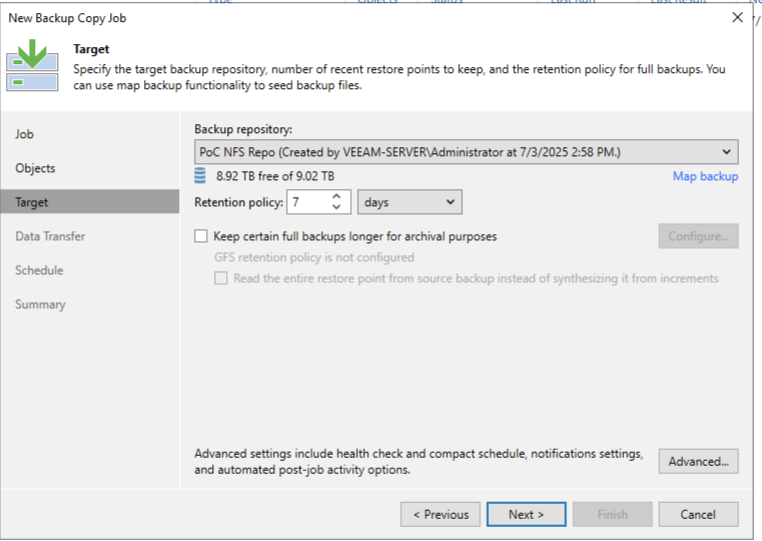
Next select the backup repository that represents the 2nd media device to backup to
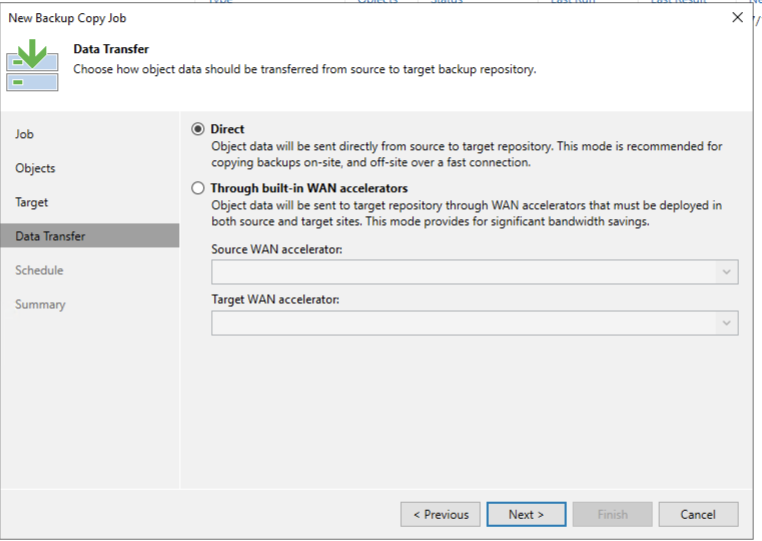
Choose the Data Transfer type appropriate for your environment
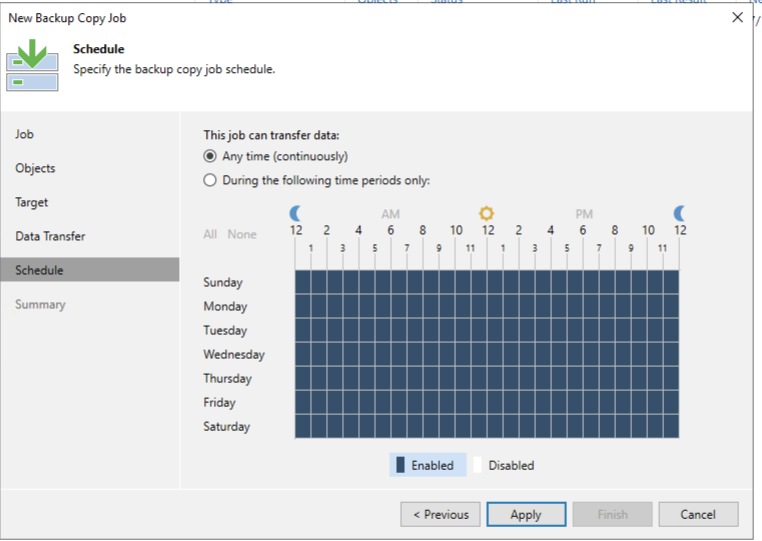
Select the time that the Backup Copy job can run
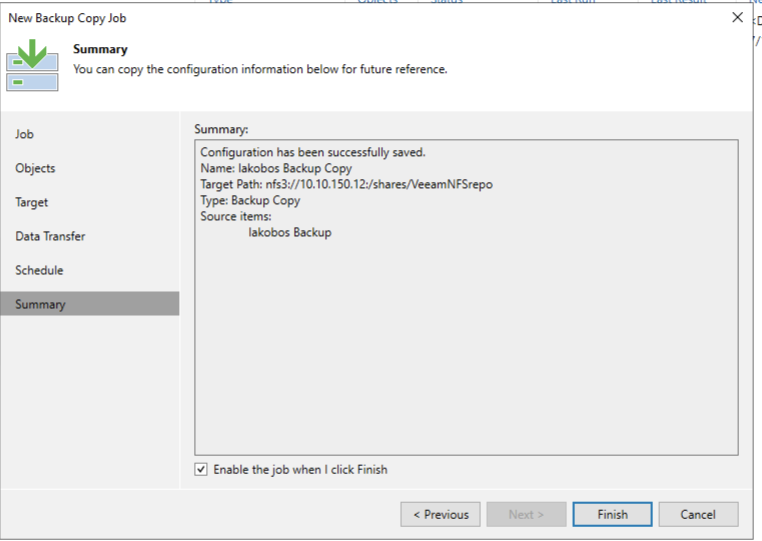
Verify your job settings and enable the job when you click Finish
Copy 3 / Offsite & "Offline" Replicated VMs
To have a 3rd offsite and offline copy Veeam Replication can be used. The Replication requires that there be a destination ESX / vSphere Server and a Datastore that is on alternate storage. The Backup jobs use Storage Repositories but the Replication will go directly to an ESX Datastore.
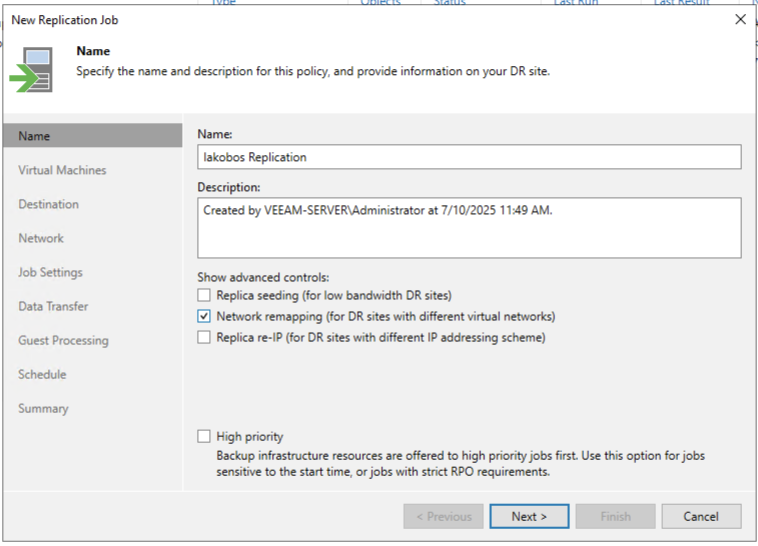
Create the Replication Job in Veeam
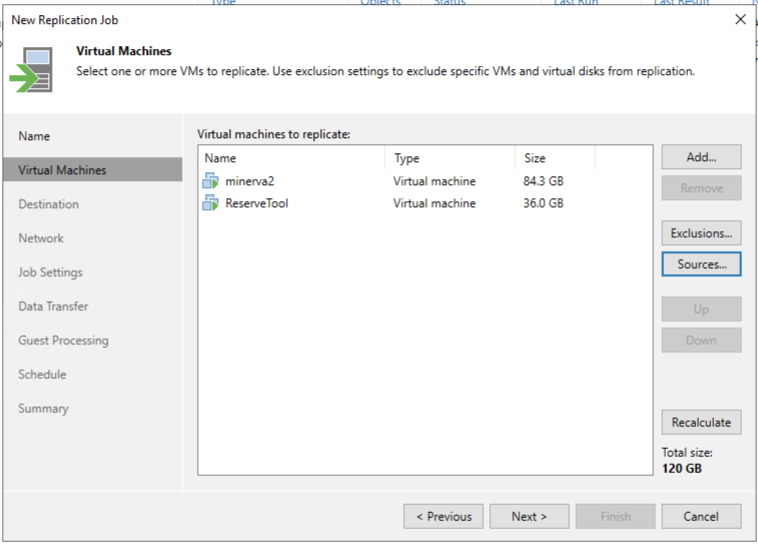
When the Replication job's virtual machines are selected the goal will be to replicate from either the original Backup job or the Backup Copy job. After clicking NEXT, choose Sources.. to bring up the dialog that will allow a choice of the Storage Repository that is intended to be replicated
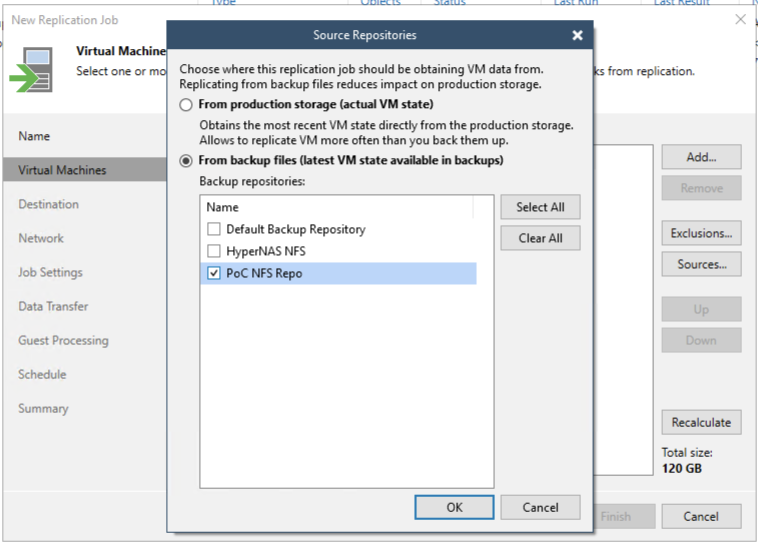
The Virtual Machines on the Source Repository will be populated in the selections. The default selection can remain or some can be removed strategically per the needs of the user
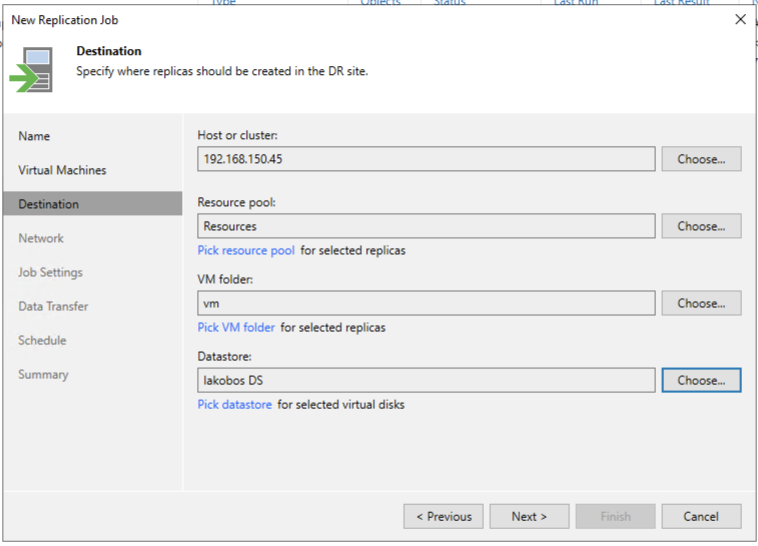
The next dialog requires the destination to be configured. A destination Host/Cluster, the Resource Pool, the VM folder, and Datastore need to be selected
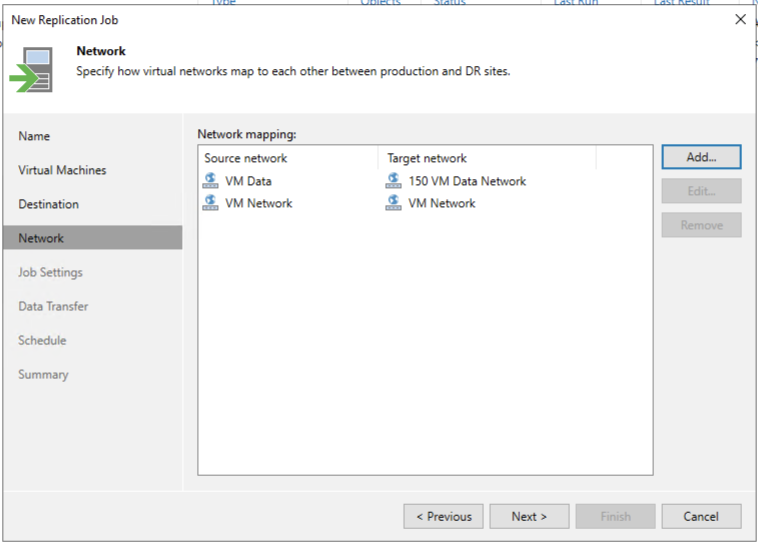
Presumably the VM Networks between the source and destination ESX hosts will be different. The next option is to configure the mapping of the source networks to the destination networks
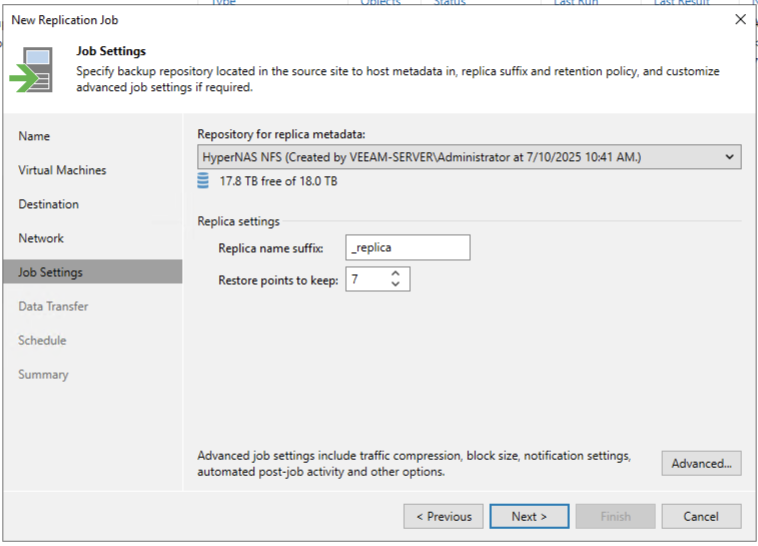
The job settings require that you select a Storage Repository for the replica metadata. This can be either the primary or secondary backup's Storage Repository that was used
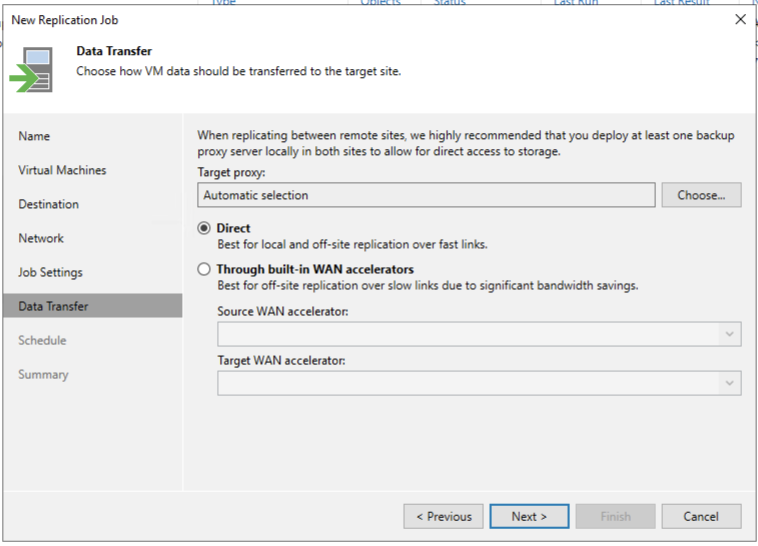
The next configuration is for the Data Transfer. A Target Proxy can be specified or it can be left as an Automatic selection. The transfer can either be Direct or through a WAN accelerator depending on the site's requirements.
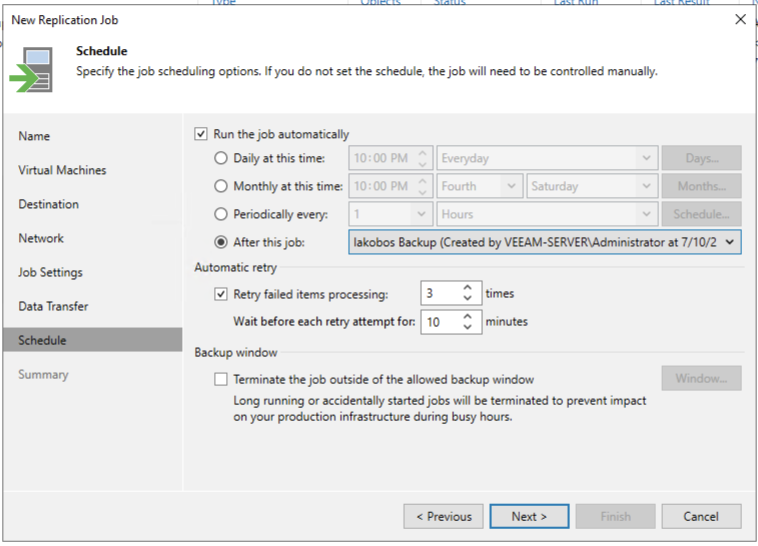
The final configuration detail is to schedule the job. The recommendation is to run the job automatically after the Primary or Secondary backup job completes
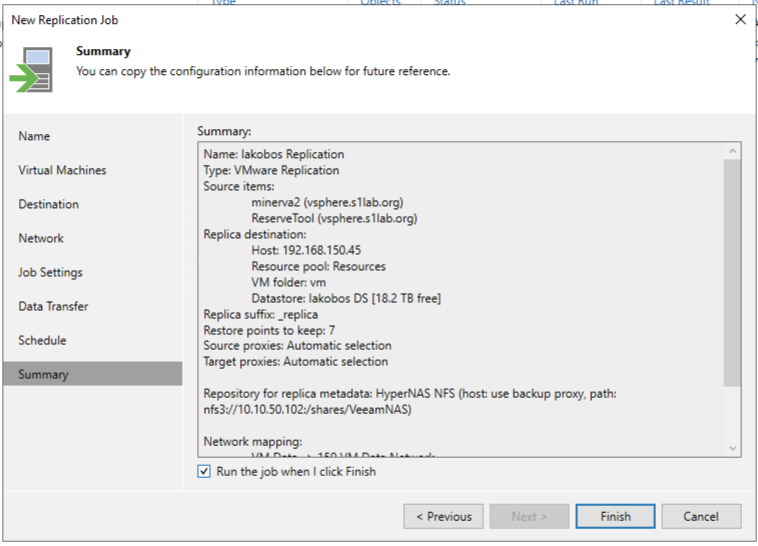
Verify the job settings before finishing the configuration
At the completion of the Replication Process the VMs should appear in the VM lists with _replica after the name and offline:

0 Errors
Verify that the configured backup (which is the basis of the other subsequent jobs) can be restore properly using Veeam's SureCopy job.
If the environment already contains a Veeam Virtual Lab it can be selected for use with this process. If a virtual lab does not exist the configuration of the SureBackup job will provide the opportunity to add one as shown in the following examples.
The recommendation is for a Full recoverability test
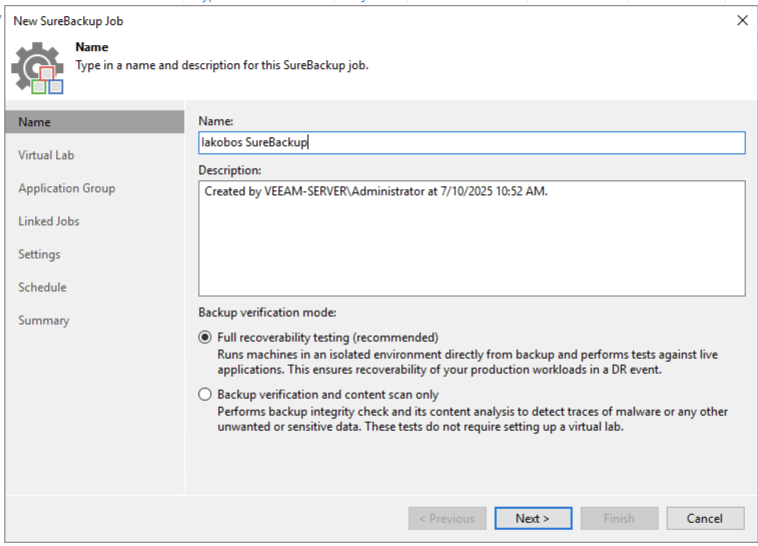
Select or create a Virtual Lab (the examples will create a new one)
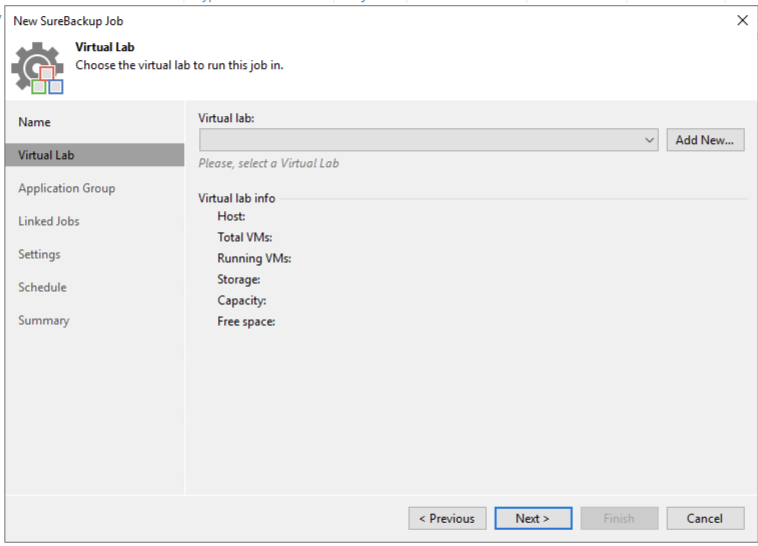
Add New will start the configuration of the Virtual Lab
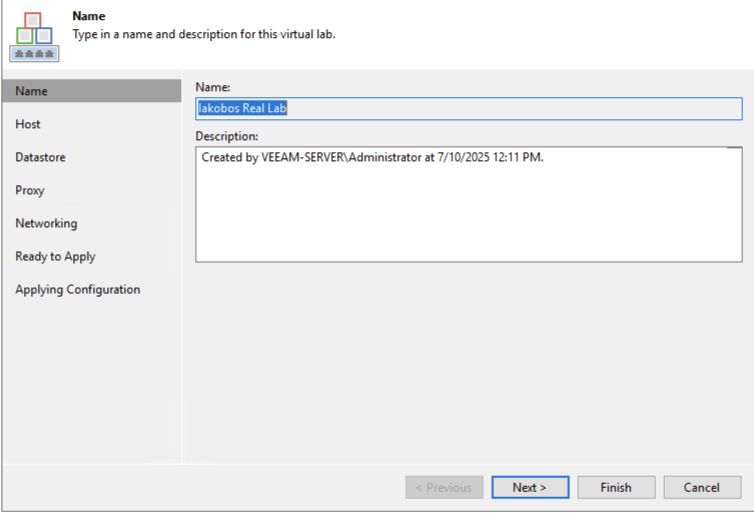
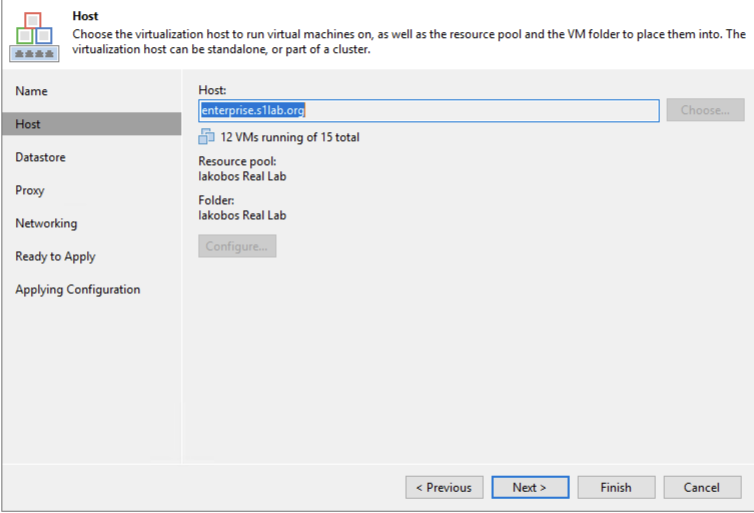
Select the VMware host that the New Virtual Lab will be contained. This host should be colocated with VM source
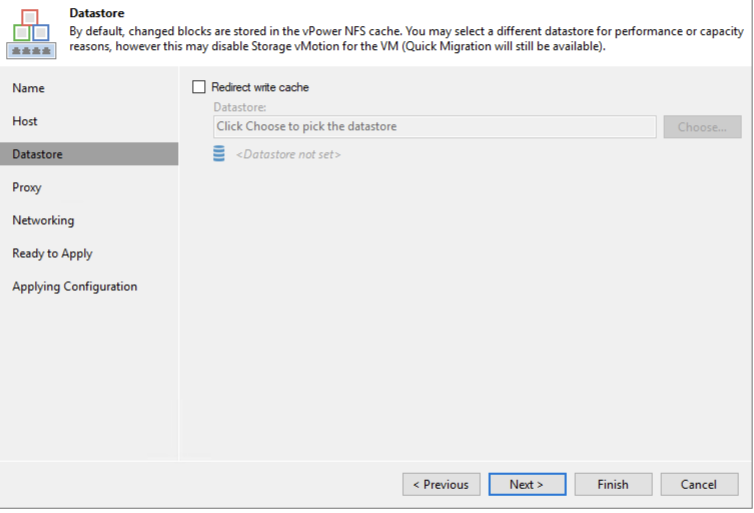
The next configuration option is to chose to redirect write cache to another datastore. This is dependent on the site configuration and availability of resources. It is not a requirement
Next select the EDIT option to ensure that you configure the Virtual Lab to use the proper datastore and production network
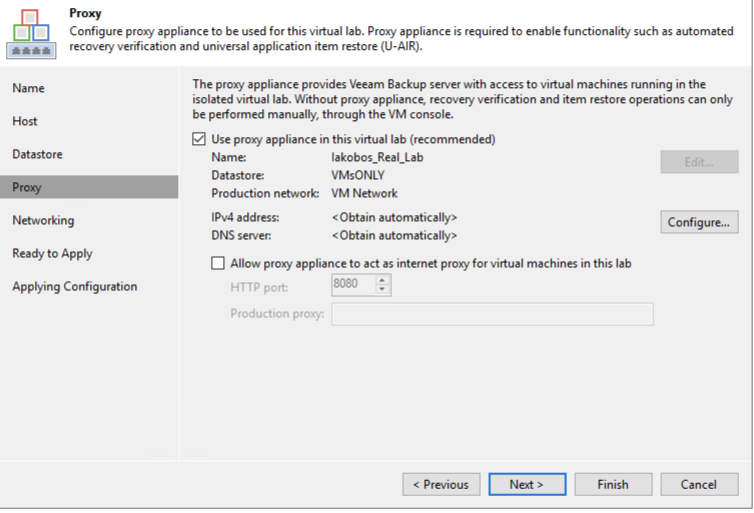
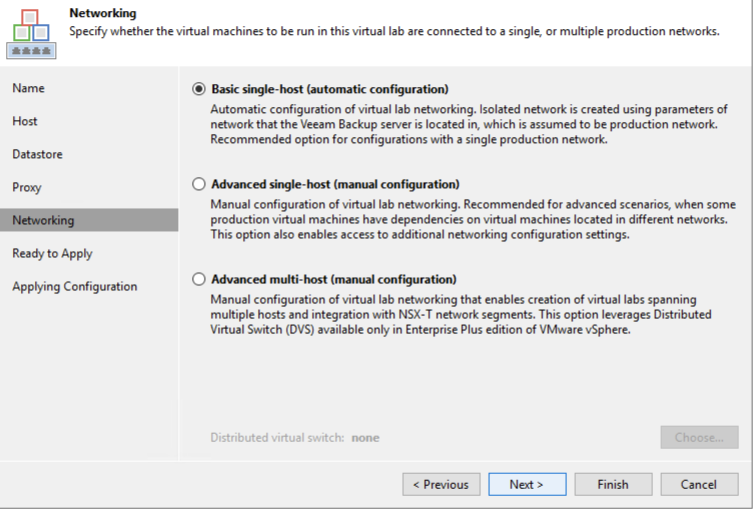
In most cases the Basic single-host configuration should work
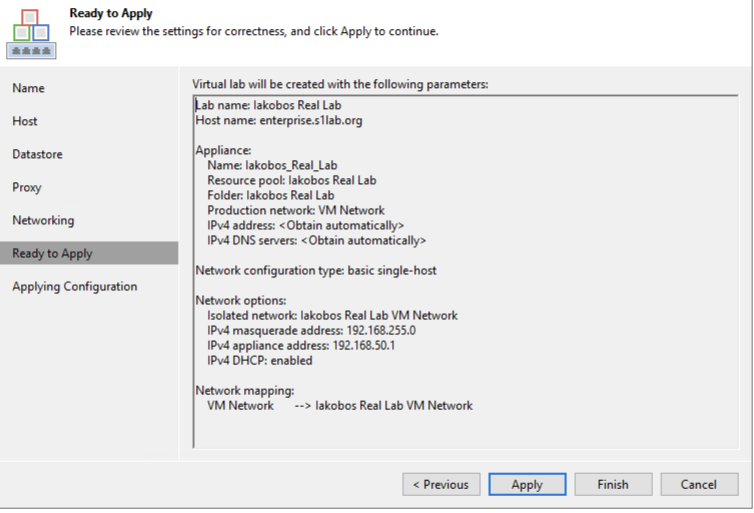
Verify the configuration and select Apply/Finish
The Virtual Lab will now be populated in the SureBackup job configuration and the configuration can proceed to the next steps
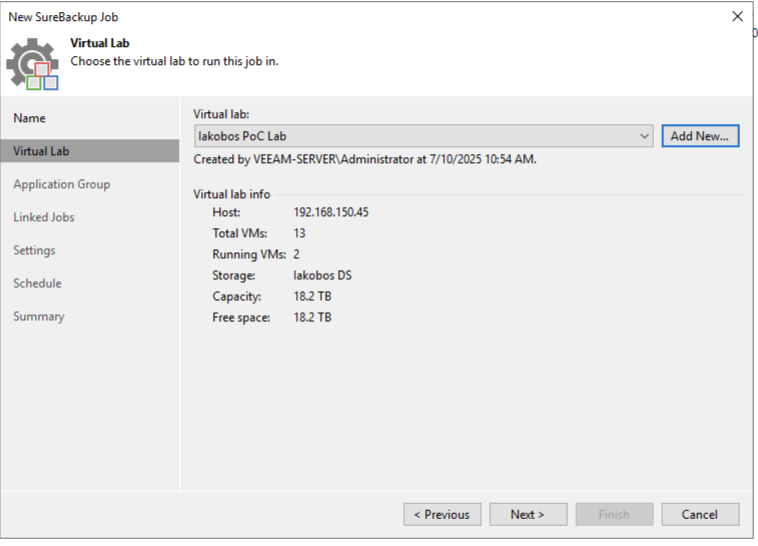
If Application Groups are in use they can be selected in the next configuration dialog. Otherwise the Next button can be clicked to move to the next stage
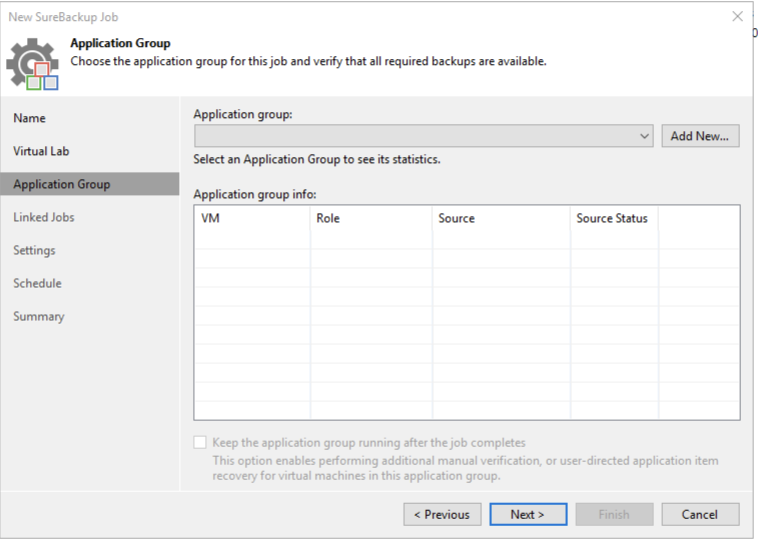
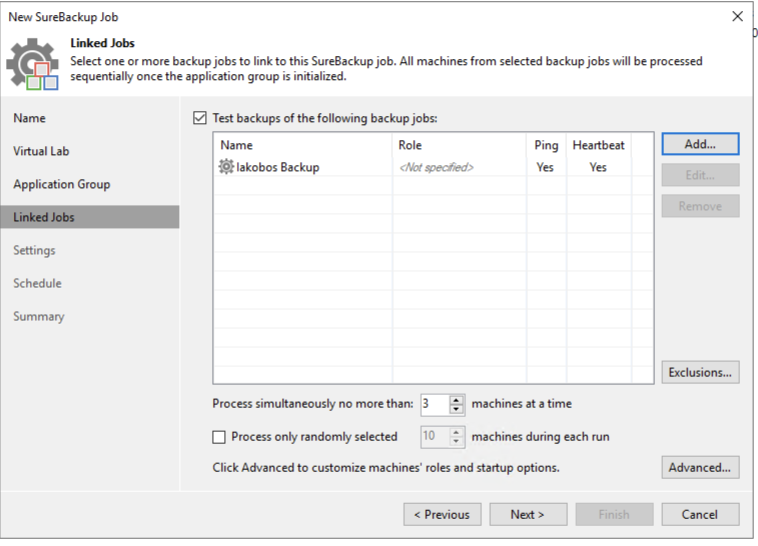
At this stage the job to be tested (the backup job) can be linked to the configuration
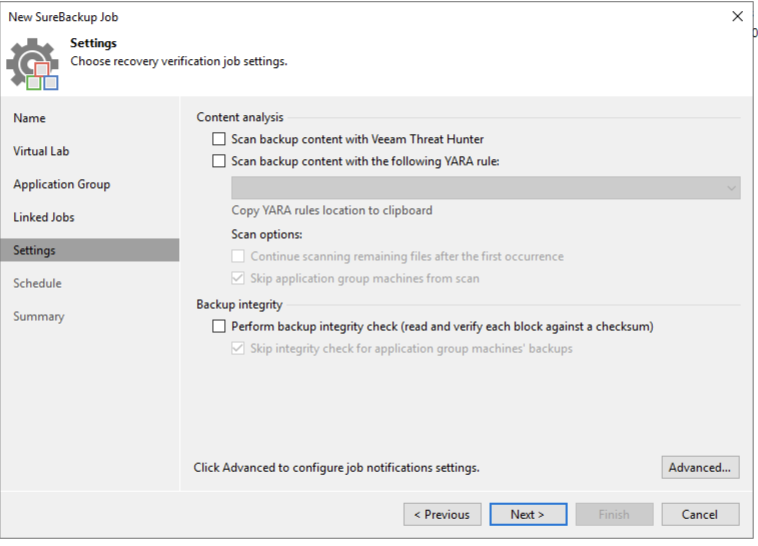
With the next configuration step the option to scan the backups can be made as well as testing backup integrity
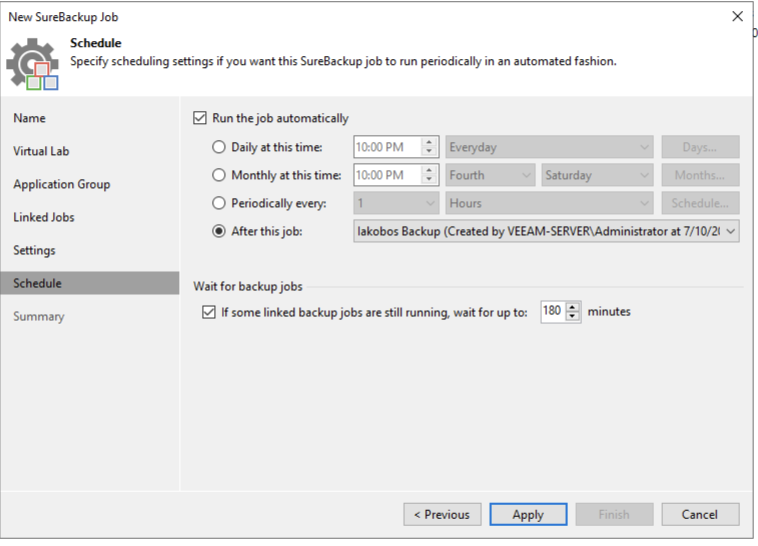
Configure the schedule of the job with the recommendation to run after the job that is being tested
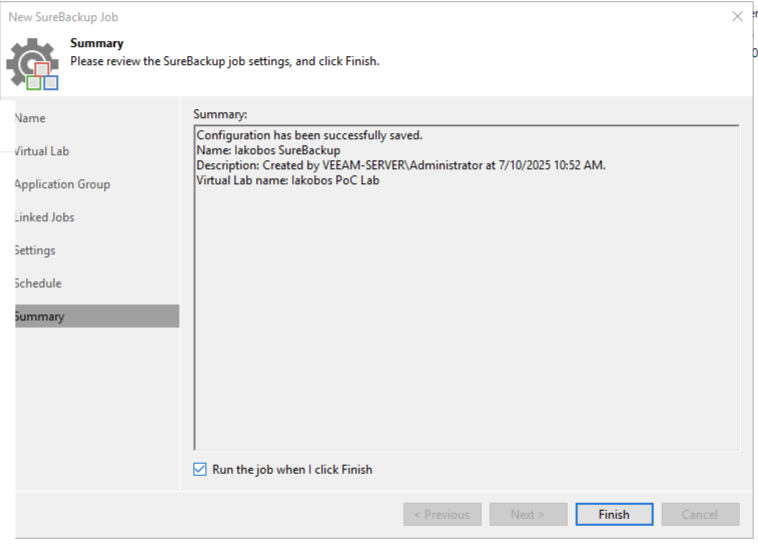
Verify the summary and click Finish