Veeam Backup and Replication Best Practice Guide <WIP>
This is a work in progress
Summary
This document is intended to provide the best practices for using Veeam's Backup and Replication product with the StorONE Storage Appliance Software to Backup, Restore, and Replication Virtual Machines.
Requirements / Recommedations
StorONE
The testing used to create this document was completed using StorONE version 3.8.0.66. Later versions of the StorONE code can be applied to this process as well.
Protocols
StorONE has been certified to be used with Veeam with the following protocols:
-
-
-
-
-
- CIFS/SMB - VeeamReady StorONE SMB Repository
- NFS - VeeamReady StorONE NFS Repository
- iSCSI - VeeamReady StorONE iSCSI Repository
-
-
-
-
N+K Settings
<TBD> Will note that 8+X is not needed for Veeam to be performant
Snapshots/Retention
<TBD>
Recommendations of things NOT to do
It is StorONE's recommendation to avoid using VMDK or RDM storage for the creation of Veeam Storage Repositories
Veeam
Direct Connect Volumes
For direct mounted (block) volumes (StorONE volumes presented directly to the Veeam Server) Veeam has specific recommendations for formatting and block size ( Veeam's Backup and Replication Best Practices )
Windows
Windows 2k19+ use ReFS with 64KB block size
Linux
Format volumes with XFS and 4KB block size
3-2-1 Backup Rule
Veeam Blog Post Regarding the 3-2-1 Backup Rule
Veeam Community Blog Post about the 3-2-1-1-0 "Golden Backup Rule"
Summary of the 3-2-1 method/rule
-
-
-
-
-
-
- Maintain at least 3 copies of your data
- Store your backups on at least 2 different medias / storage devices
- Store at least 1 copy in an offsite location
-
-
-
-
-
The additional 1-0 added as technology has advanced
-
-
-
-
-
-
- 1 Offline or "air-gapped" copy (such as a StorONE snapshot)
- 0 errors after a backup recovery verification (which can be done with SureBackup)
-
-
-
-
-
Setup
Overview
3 Copies
-
-
-
-
- 1 Backup on a Primary Storage Array
- 1 Backup Copy on a Secondary Storage Array
- 1 Replication Job to an alternate location
- replicated to a third Storage Array
-
-
-
2 Different Media
-
-
-
-
- 1 Primary Storage Array
- This can be StorONE or another vendor
- 1 Secondary Storage Array
- A StorONE Storage Appliance
- 1 Primary Storage Array
-
-
-
1 Offsite Copy
-
-
-
-
- The replicated copy is to another site, datacenter, and storage
- Requires another ESX destination
- Requires a third storage array
- The replicated copy is to another site, datacenter, and storage
-
-
-
1 Offline Copy
-
-
-
-
- the 3-2-1-1-0 method is technically calling for the offline copy to be on removable media. In this scenario the Replicated copy can remain offline until/if needed
-
-
-
0 Errors
-
-
-
-
- Configure a SureCopy Veeam job to verify/test the primary backup which will be the basis for the BackupCopy and Replication jobs.
-
-
-
Copy 1 / 1st Media device
Your primary backup copy is on One Storage array. In these examples, the primary is on StorONE but can also be on another vendor.
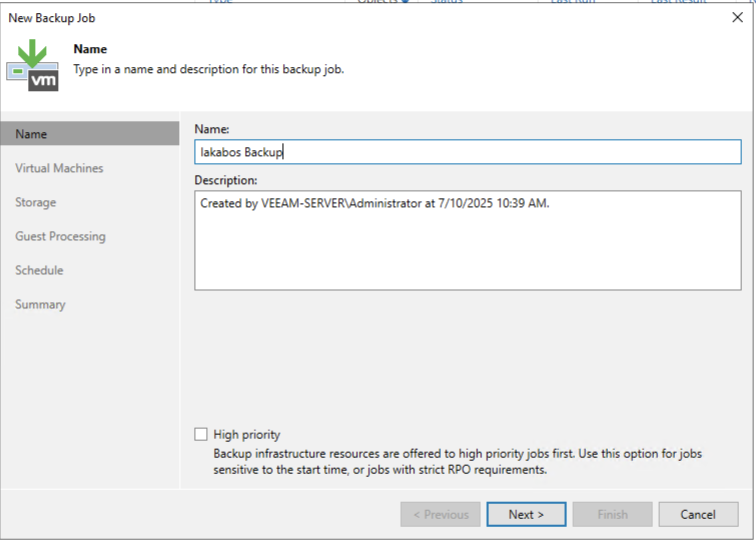
Create the Backup Job and name it:
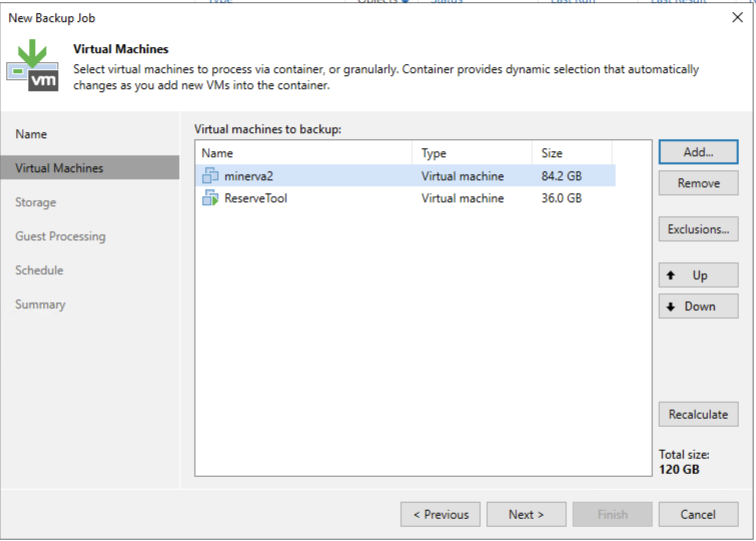
Add your virtual machines to the job:
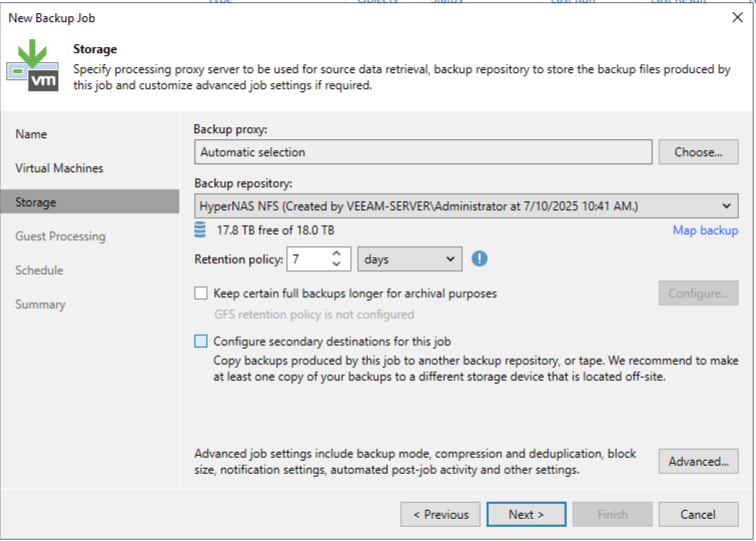
Next you should select your storage repository. This is the 1st of the 2 media /storage devices that are recommend
The next screen is optional and dependent on the types of VMs and backup jobs you've created
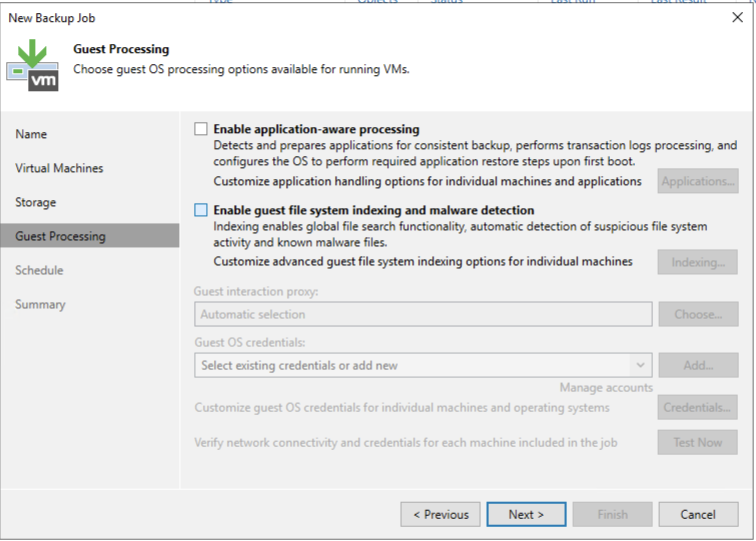
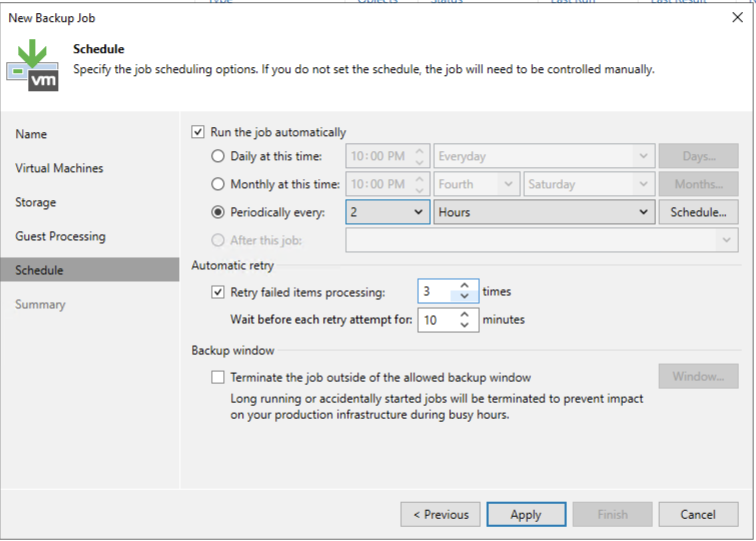
Next setup the schedule that you want your VMs to backup to
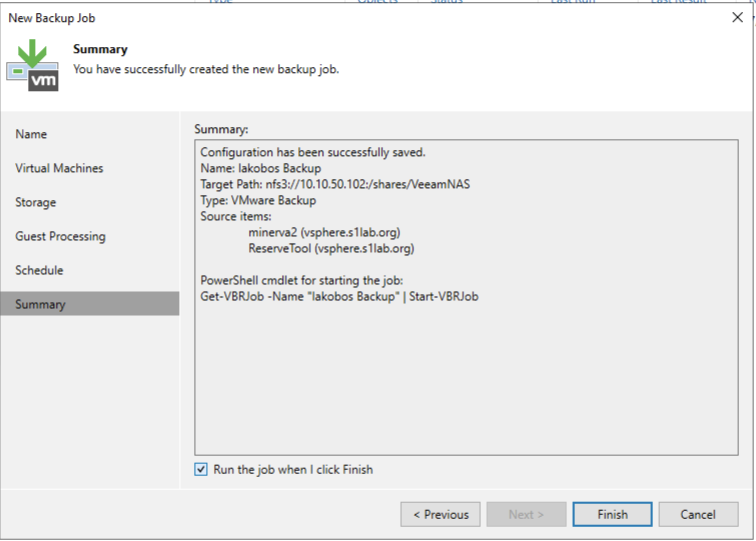
Verify your settings and then choose to run the job when you finish (or let it run as scheduled)
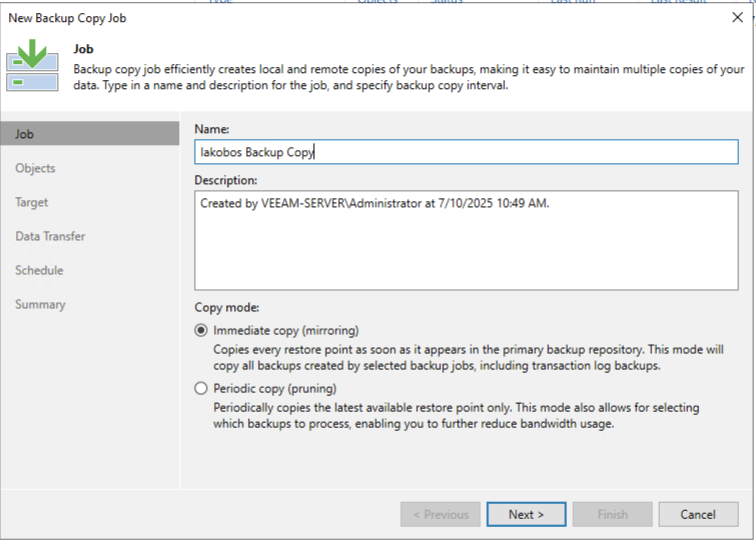
Copy 2 / 2nd Media Device
Create a Backup Copy Job and choose the copy mode
In the next section you want to choose the Objects that you want to make a Backup Copy from. Choose from the job that you created for the 1st Copy
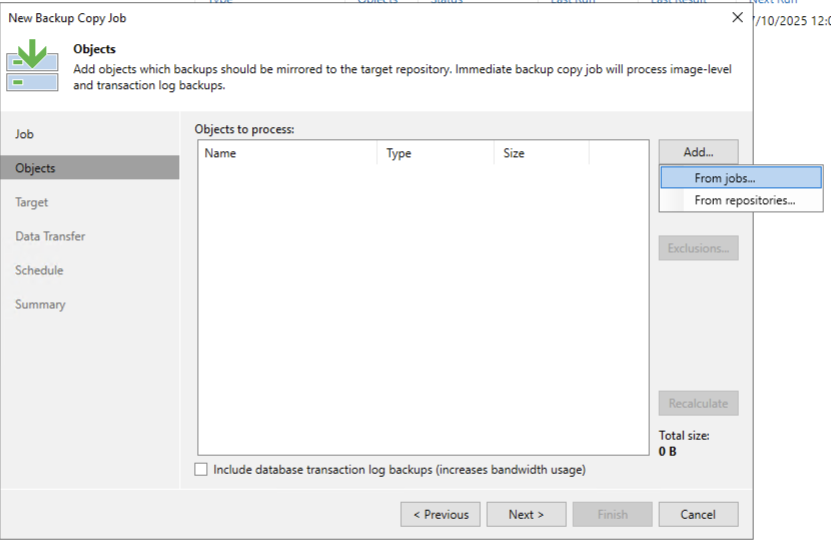
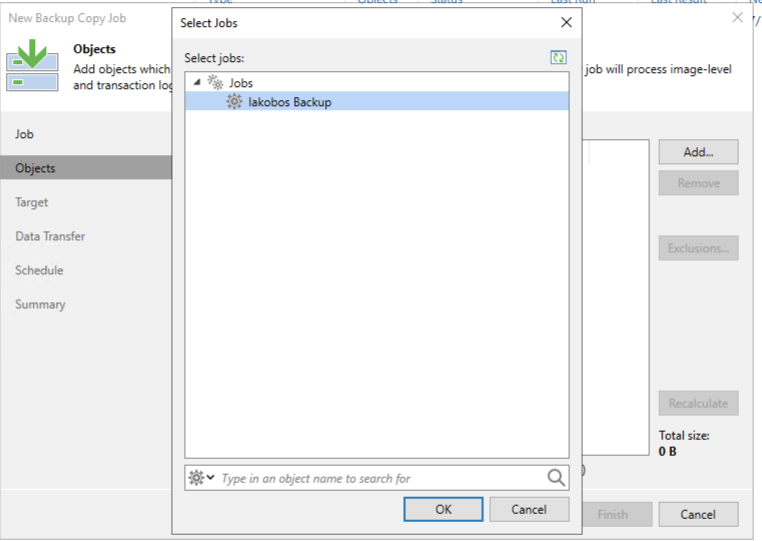
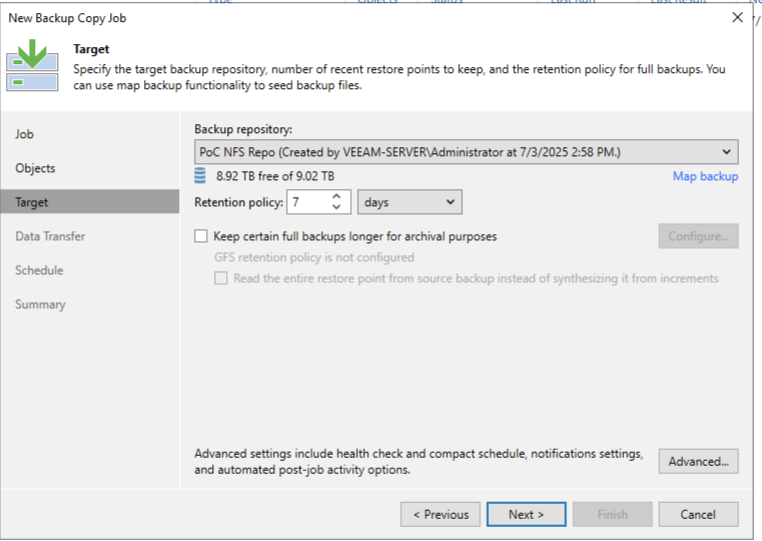
Next select the backup repository that represents the 2nd media device to backup to
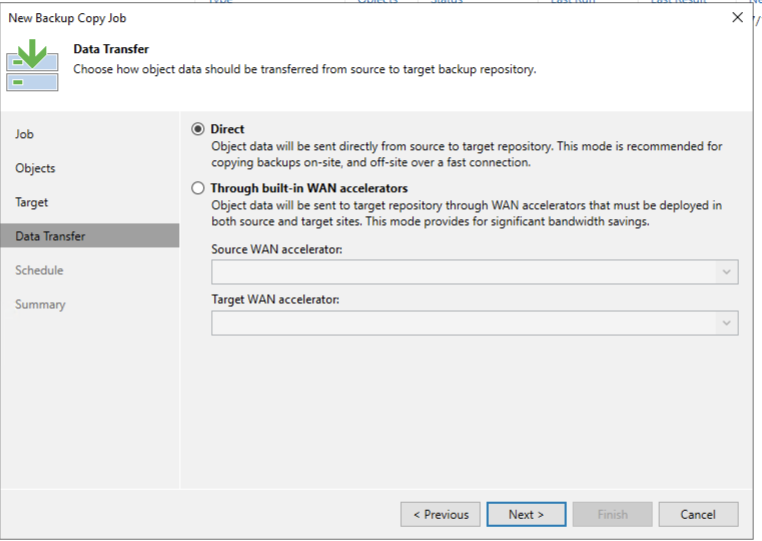
Choose the Data Transfer type appropriate for your environment
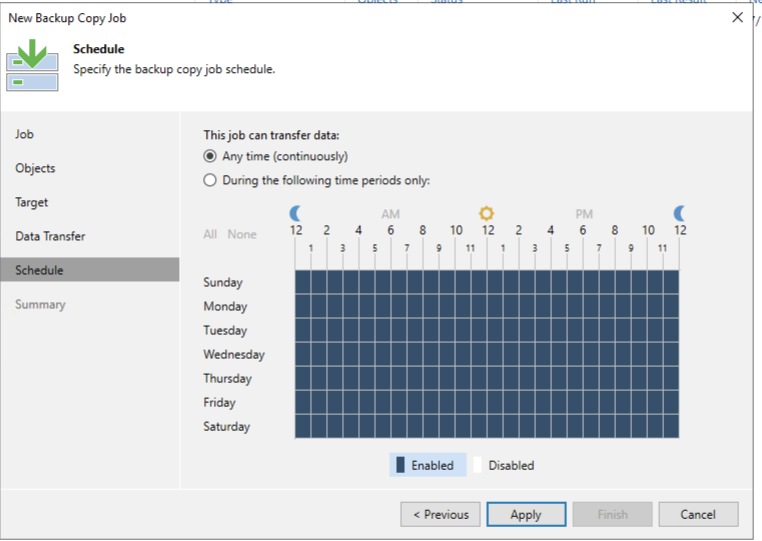
Select the time that the Backup Copy job can run
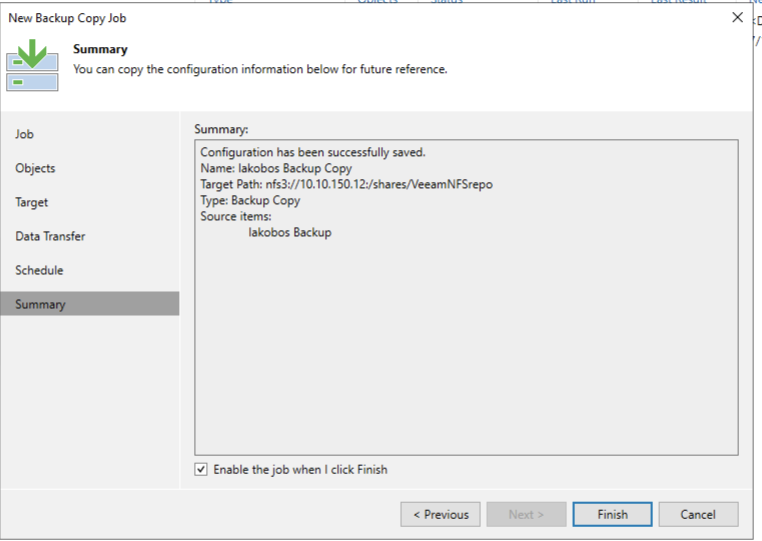
Verify your job settings and enable the job when you click Finish
Copy 3 / Offsite & "Offline" Copy
To have a 3rd offsite and offline copy Veeam Replication can be used. The Replication requires that there be a destination ESX / vSphere Server and a Datastore that is on alternate storage. The Backup jobs use Storage Repositories but the Replication will go directly to an ESX Datastore.
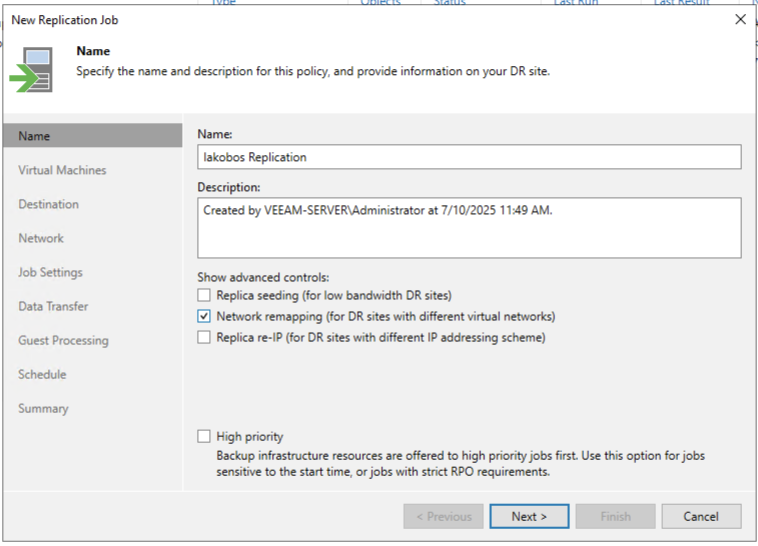
Create the Replication Job in Veeam
When the Replication job's virtual machines are selected the goal will be to replicate from either the original Backup job or the Backup Copy job. After clicking NEXT, choose Sources.. to bring up the dialog that will allow a choice of the Storage Repository that is intended to be replicated
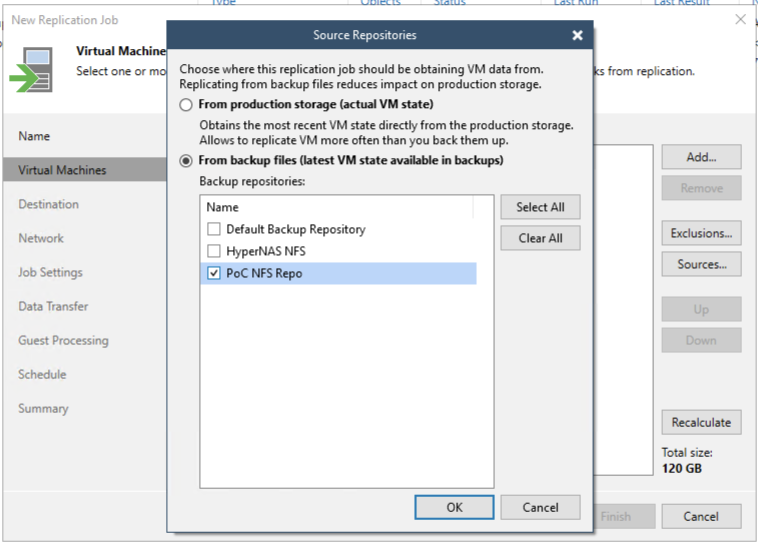
The Virtual Machines on the Source Repository will be populated in the selections. The default selection can remain or some can be removed strategically per the needs of the user
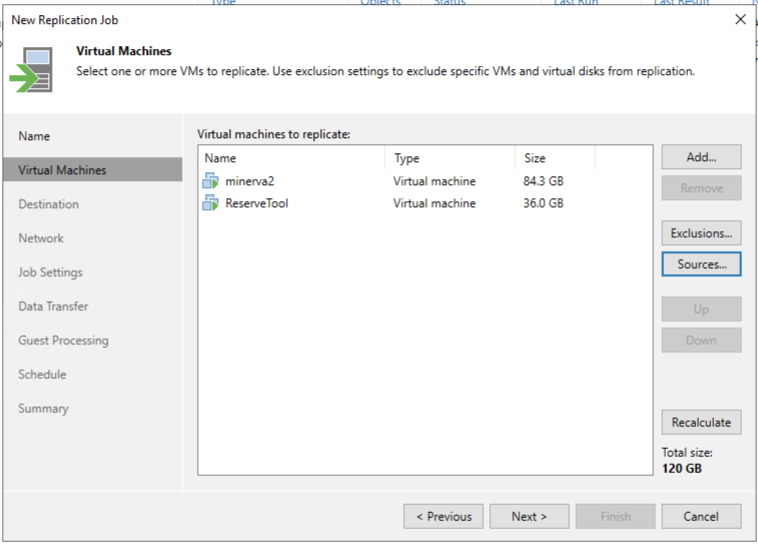
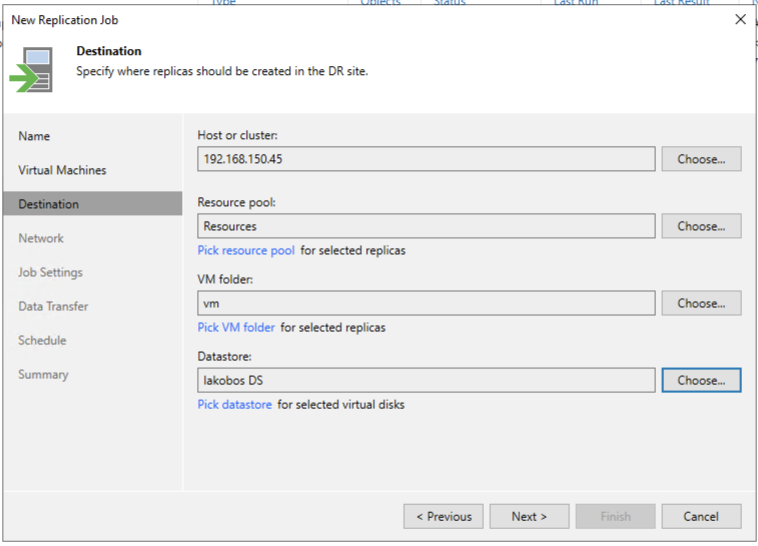
The next dialog requires the destination to be configured. A destination Host/Cluster, the Resource Pool, the VM folder, and Datastore need to be selected
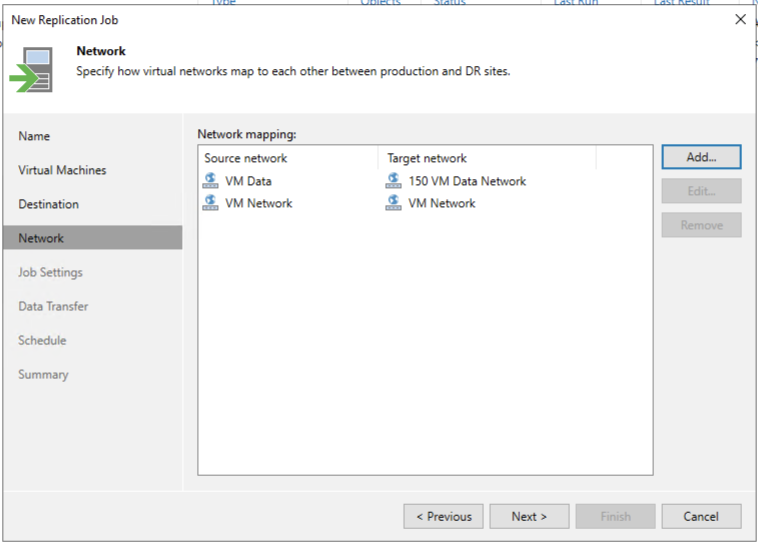
Presumably the VM Networks between the source and destination ESX hosts will be different. The next option is to configure the mapping of the source networks to the destination networks
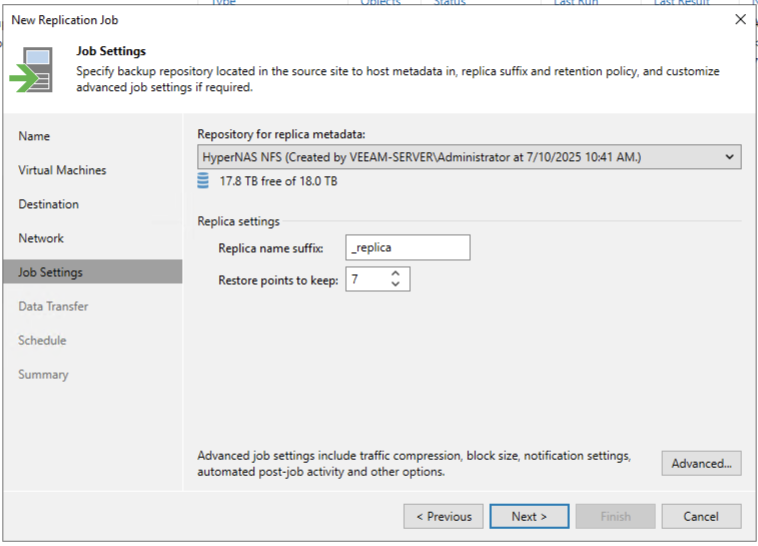
The job settings require that you select a Storage Repository for the replica metadata. This can be either the primary or secondary backup's Storage Repository that was used
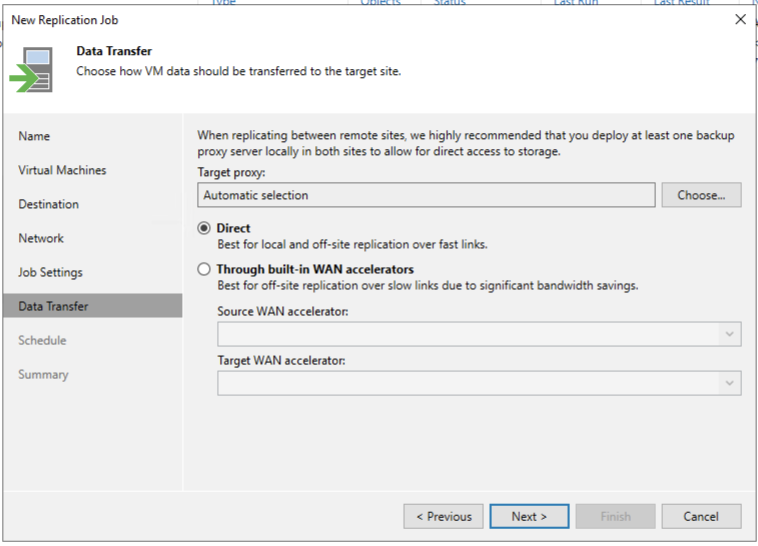
The next configuration is for the Data Transfer. A Target Proxy can be specified or it can be left as an Automatic selection. The transfer can either be Direct or through a WAN accelerator depending on the site's requirements.
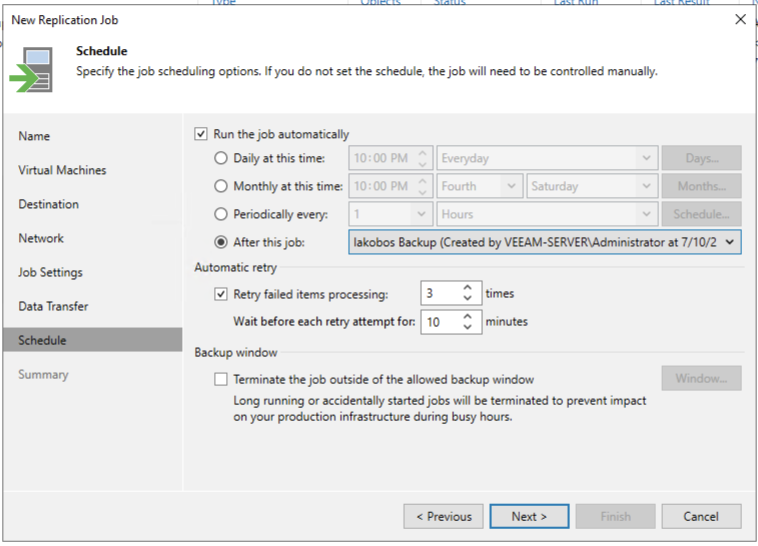
The final configuration detail is to schedule the job. The recommendation is to run the job automatically after the Primary or Secondary backup job completes
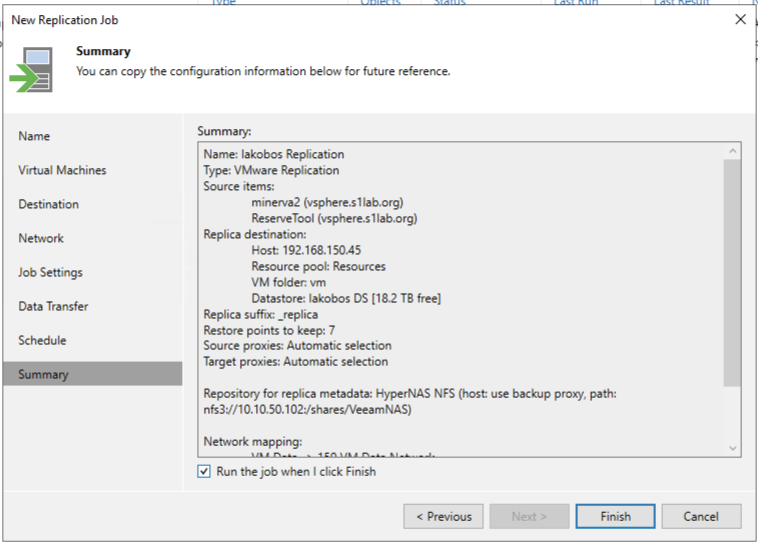
Verify the job settings before finishing the configuration